Home / Components / CMS Date Gate
CMS Date Gate: Upcoming and Past CMS Items in Framer
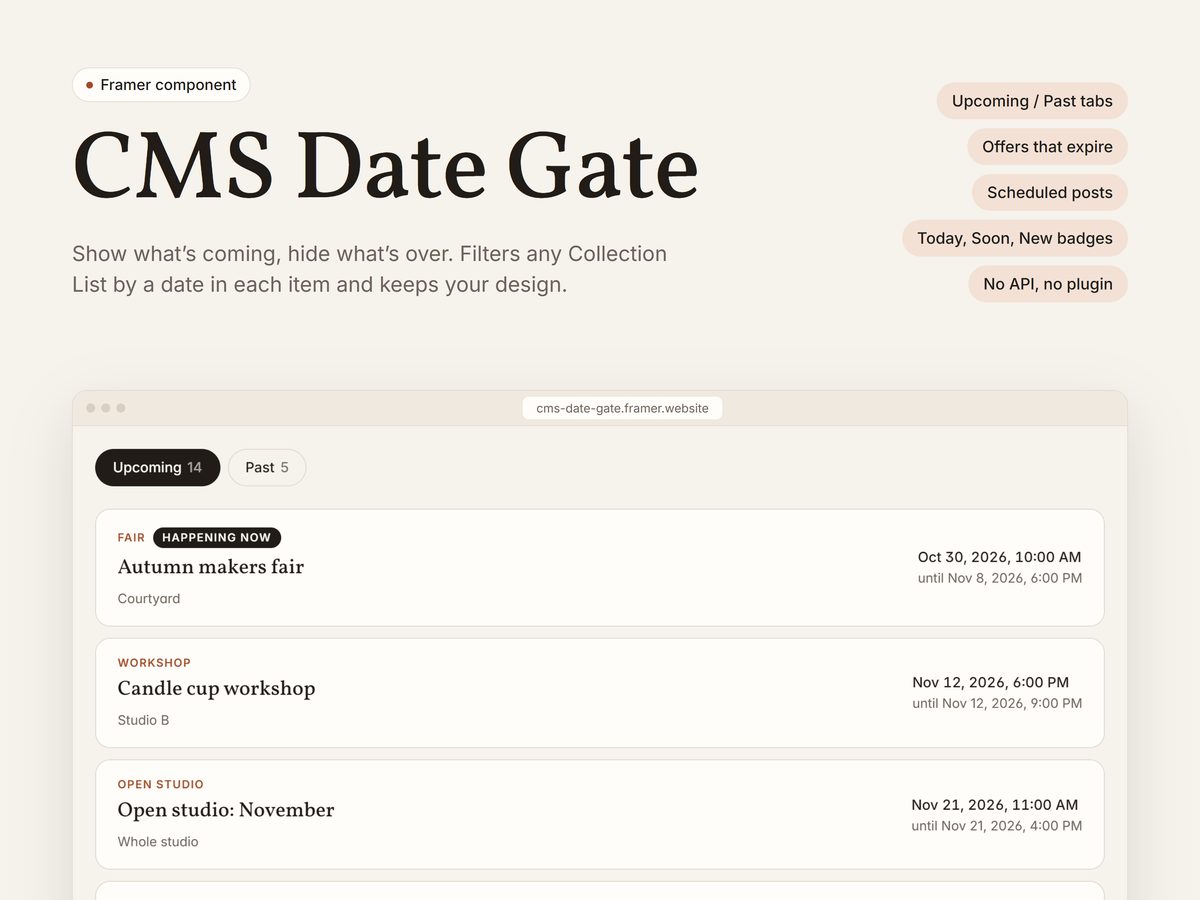
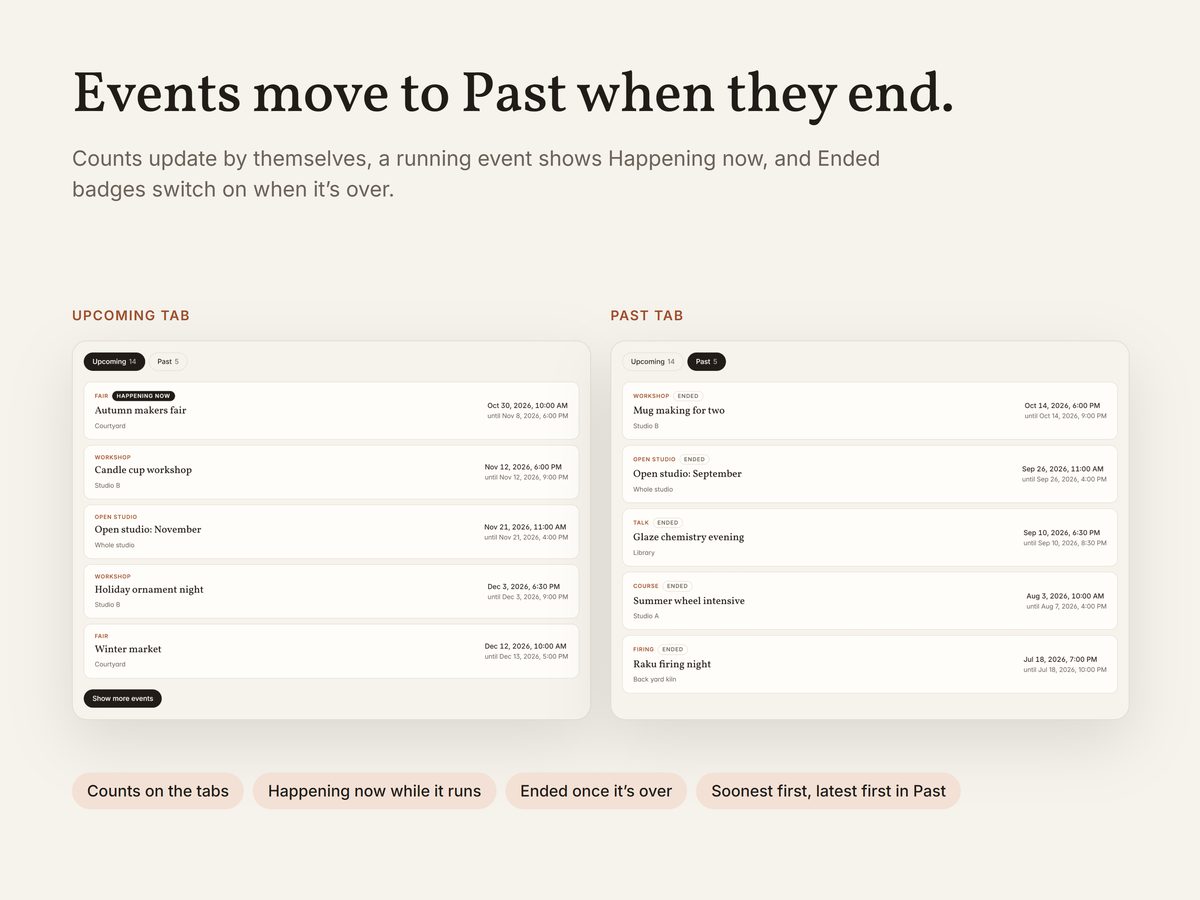
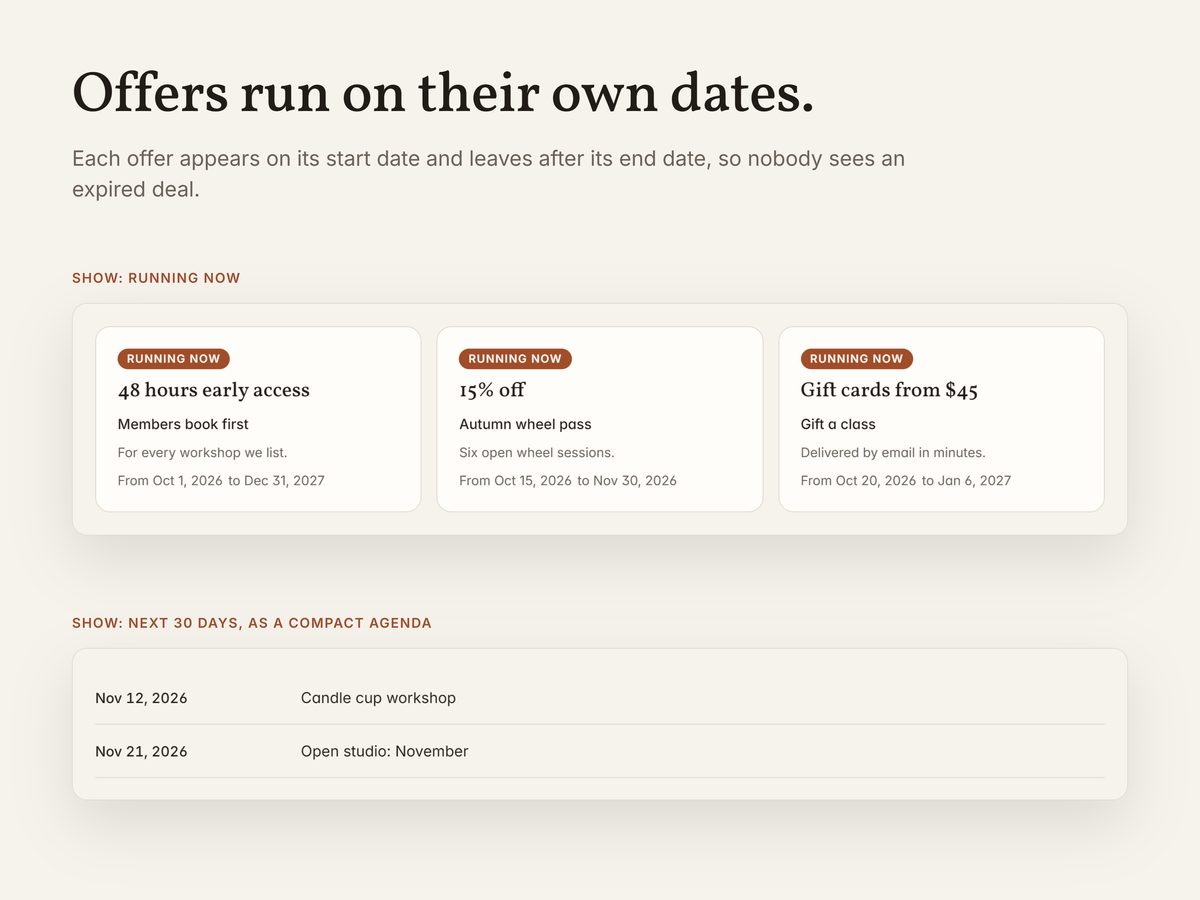
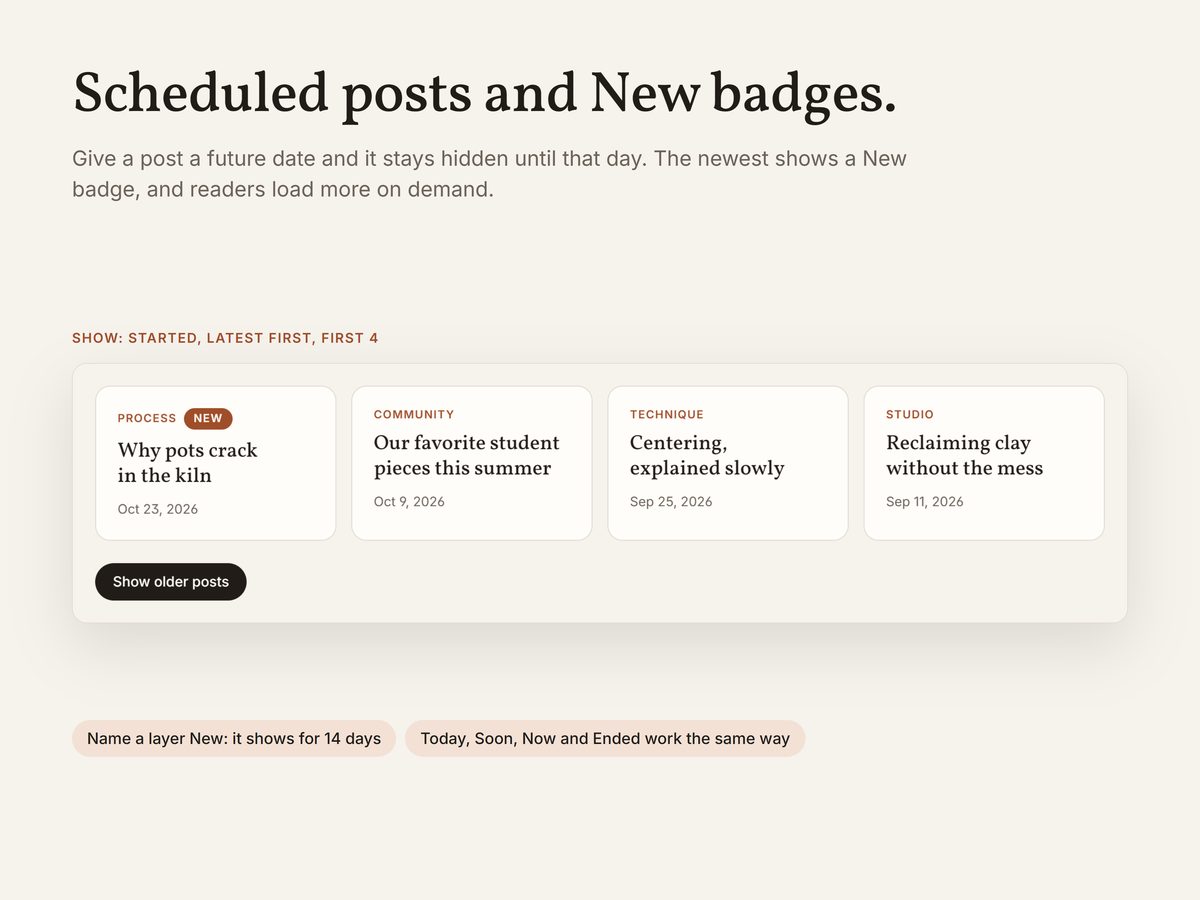
Show what's coming and hide what's over. CMS Date Gate filters any Collection List by a date in each item, so past events move to a Past tab, offers leave after their end date and scheduled posts appear on their day. You keep your own card design.
$12One-time purchase
Updated October 31, 2026 · Questions: info@shashankthigale.com
About
What CMS Date Gate does
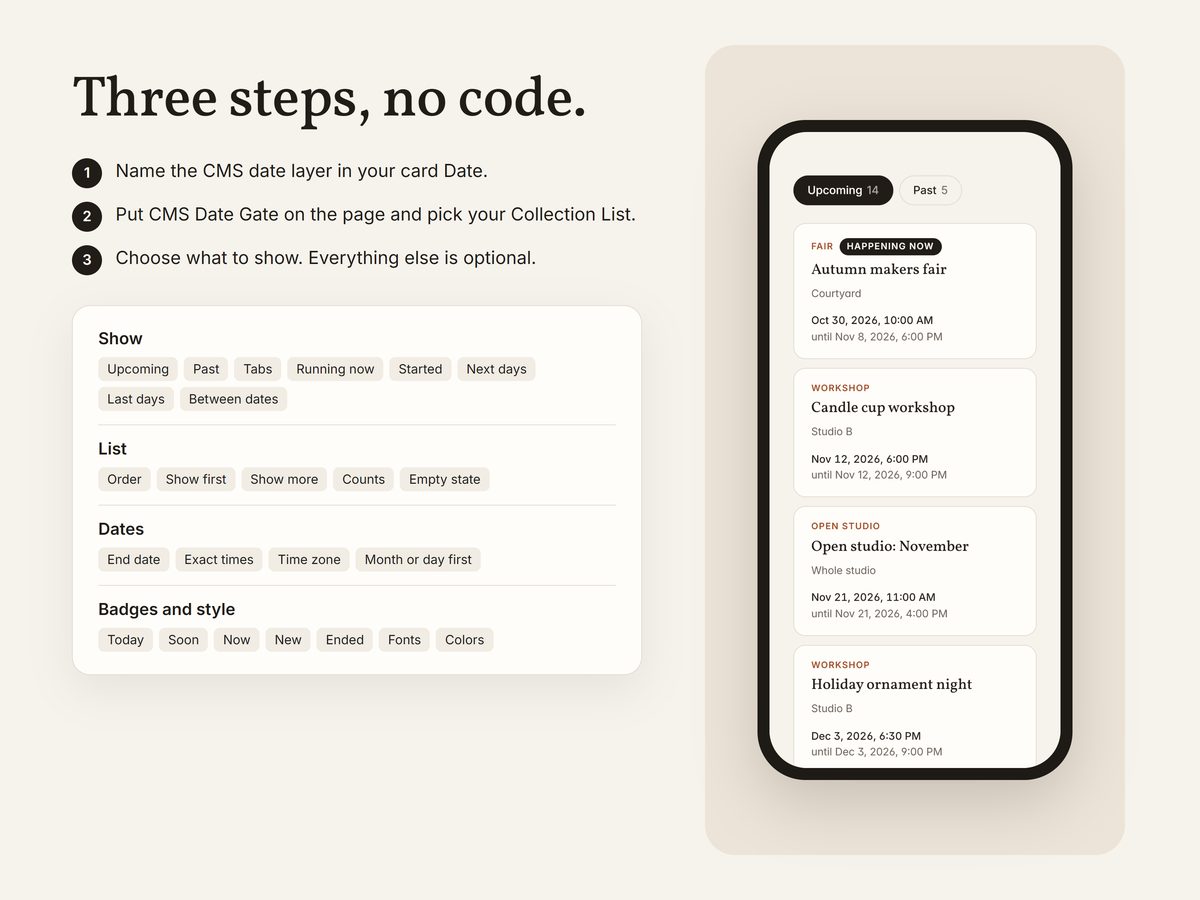
Name the text layer with the CMS date in your card Date, connect your Collection List, and choose what to show: upcoming, past, Upcoming and Past tabs with counts, running now, scheduled posts, the next or last few days, or between two dates.
Layers named Today, Soon, Now, New or Ended show only when that's true, so badges switch on by themselves. It reads the dates already on the page, with no API, plugin or requests, and past items never flash or make the page jump while it loads.
Settings
Everything is a setting
- Upcoming, Past, or Upcoming and Past tabs with counts
- Running now, for offers, sales and open calls with a start and an end date
- Started, for scheduled posts that should appear on their date
- Next or last few days, or between two dates
- Today, Soon, Now, New and Ended badges that switch on by themselves
- End dates for multi-day events, exact times or whole days, and a venue time zone
- Soonest first, latest first or your own order, the first few items with a Show more button, and an empty state
- Reads dates in English, Spanish, French, German, Italian, Portuguese and Dutch, plus numeric dates
Screenshots
A closer look
Details
At a glance
| Type | Framer code component |
|---|---|
| Works with | Any Framer Collection List |
| Settings | All in the properties panel |
| Delivery | Instant link to add it to any Framer project |
| License | Any number of your own or client projects |
| Last updated | October 31, 2026 |
FAQ
Questions
How do I add it to my site?
After checkout you get a link on screen and by email. Copy it, paste it onto your Framer canvas, and the component appears with all its settings in the properties panel. No code needed.
Can I use it in client projects?
Yes. Components can be used in any number of your own or client projects. Reselling or sharing the component or its link isn't allowed.
Does it work with my own card design?
Yes. It shows and hides the items of your own Collection List and never redraws them, so your cards keep their layout, fonts and effects. Add a text layer with the CMS date and name it Date. Add one named End Date for things that run over several days.
Whose clock decides what is past?
Each visitor's own clock, unless you set a time zone. Set the venue's time zone, such as America/New_York, and everyone sees the same list. Dates without a time count as the whole day, so today's event stays upcoming until midnight.
Is anything hidden from search engines or private?
Hidden items stay in the page's code, so don't use it to keep something secret. It is for showing the right items at the right time.
What if something doesn't work?
Email info@shashankthigale.com and I'll fix it. If it doesn't work as described and I can't fix it, you get a full refund within 14 days of purchase. The refund policy has the details.
More